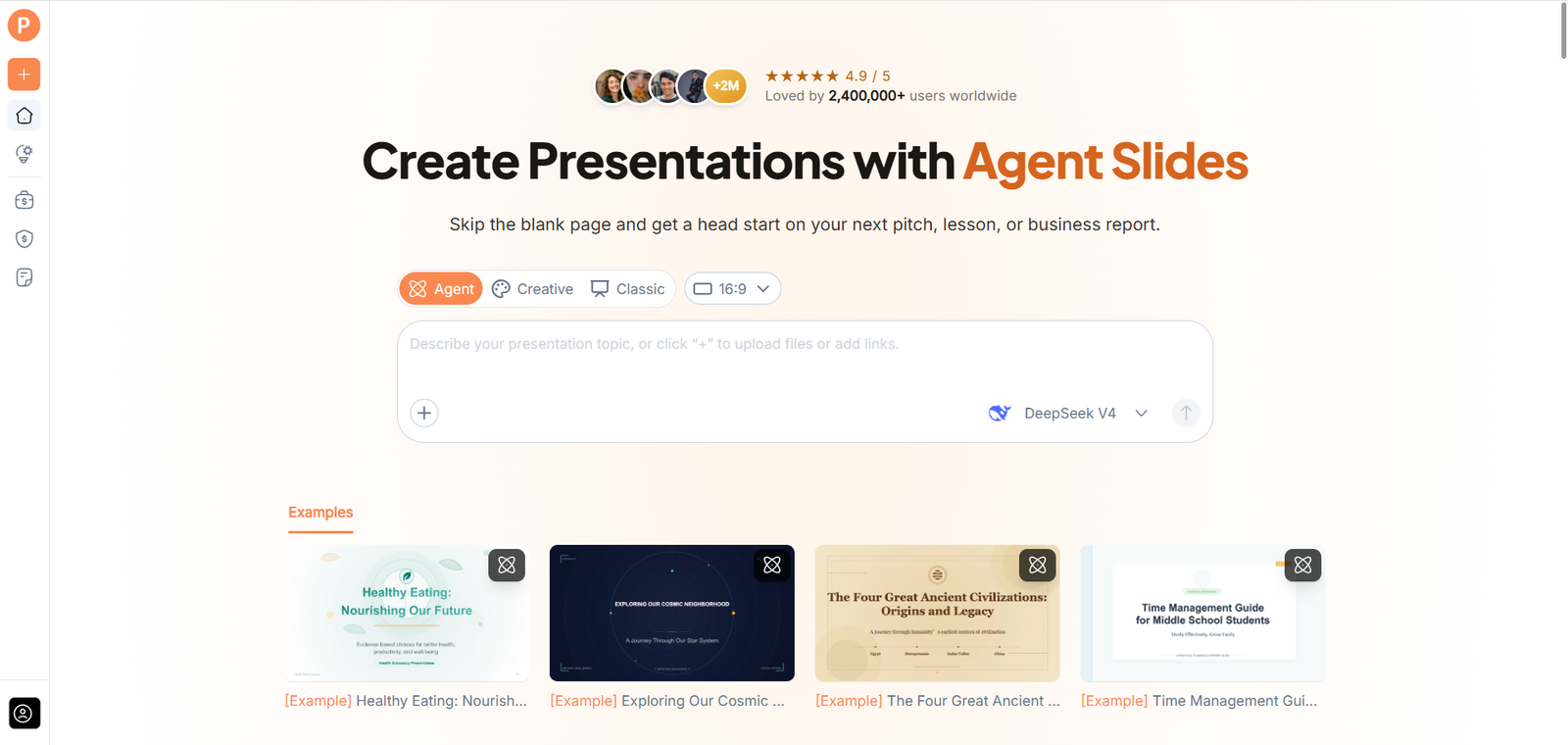
AI PPT Maker Turns a Simple Topic into a Presentation Starting Point
Sometimes there is no report to upload. You have a subject, a reason to present it, and a rough idea of what the audience needs. AI PPT Maker can take that starting point into a presentation workflow with outline review and several generation approaches.
This is an accessible way to understand the product.
You do not need to arrive with a finished deck or a lengthy source document. A clear topic and a defined purpose can establish the brief. The important part is treating the generated result as something to examine and develop, rather than assume it is ready to present.
A Simple Topic Needs a Clear Purpose
Explain Why the Presentation Exists
“Create slides about time management” leaves many possibilities open.
A short introduction for students needs different material from a workshop for experienced colleagues.
Name the audience and explain what they should understand by the end.
AI PPT Maker can then work from a more useful brief. The words do not need to be elaborate. Clear context is more valuable than a long request full of promotional adjectives.
Set the Boundaries Early
Identify the scope and any information that should not be added.
If you need an introductory explanation, say so. If the presentation should avoid unsupported figures or invented examples of real people, include that boundary.
A topic-first draft may require more factual checking because there is less supplied source material.
AI PPT Maker provides a starting point, while the user remains responsible for verifying the content before using it with an audience.
The Brief Can Grow as You Work
Agent Supports Follow-Up Conversation
Agent mode supports multi-round conversation.
You can begin with the topic and purpose, then add context when the first draft reveals something missing.
For example:
The audience has no background in this subject. Explain the basic terms before introducing the practical examples.
Another follow-up can clarify the level of detail or the main point.
This makes Agent relevant to people who find it easier to develop an explanation through revision than write a complete brief immediately.
Sources Can Be Added for a Stronger Foundation
AI PPT Maker supports mixed input across Agent, Creative, and Classic.
Text, uploaded documents, webpages, and video sources can supplement the topic description.
Once you identify relevant approved material, use it to ground the draft. Explain which source governs the facts and which provides background.
The workflow does not have to remain topic-only. Existing information can become part of the brief as the presentation’s needs become clearer.
The Outline Shows What the Product Proposes
Review the Route Through the Subject
All three modes let you review and adjust the outline before generating slides.
For a topic-first request, this checkpoint is particularly useful.
Does the outline introduce the subject clearly? Is the level suitable for the audience? Has it included material outside the intended scope?
AI PPT Maker provides a proposed structure, giving the user something concrete to inspect instead of beginning with an empty slide.
The review should happen before visual design makes the draft seem finished.
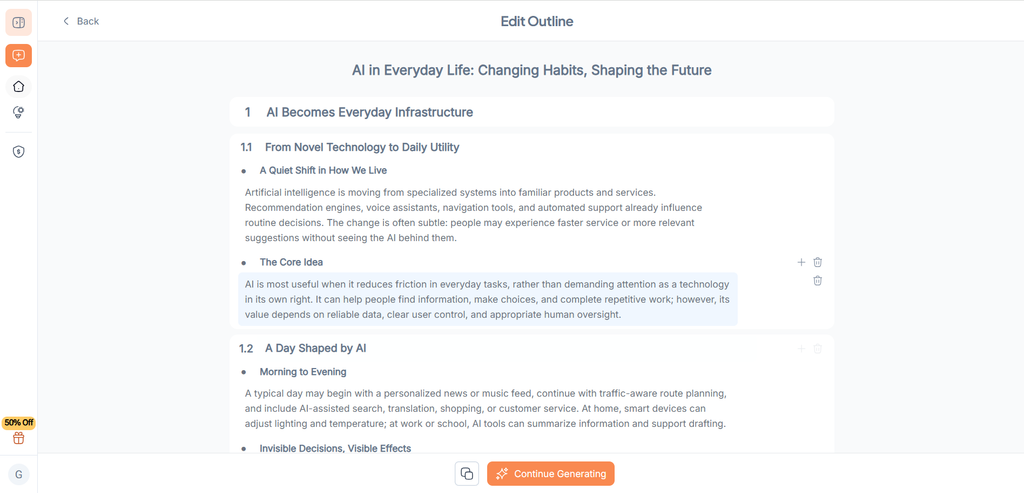
(Turn a topic into a presentation outline with AI PPT Maker)
Replace Generic Sections with Useful Ones
A broad topic can produce a broad structure.
Check whether the sections address the presentation’s actual purpose. A teacher may need examples and practice questions. A manager may need a clear explanation and a decision point. A student may need to meet an assignment’s requirements.
Supply those needs in the brief.
AI PPT Maker becomes more useful when the structure reflects a real communication task rather than a general overview that could belong to anyone.
Choose How the Draft Should Take Shape
Agent and Classic Support PPTX Workflows
Agent exports PPTX and includes AI image generation.
Classic offers a template-based approach, with more than 1,000 templates available through AI PPT Maker. It supports PPTX and additional options including PDF, Keynote, outlines, and images.
These modes are relevant when the draft needs continued work in PowerPoint or another supported output.
Choose based on how you expect to revise and deliver the presentation. The generation method and the final file should fit the same task.
Creative Offers a Visual Route
Creative emphasizes visual expression and exports PNG images.
That can suit a finished visual page, particularly when the concept’s presentation matters.
The format differs from editing individual text elements in PowerPoint.
AI PPT Maker’s three modes give a simple topic several possible routes. A newcomer should understand those distinctions early, rather than discover after generation that the selected output does not fit the next step.
Turn the Starting Point into a Usable Presentation
Review Content and Visuals Together
Check definitions, examples, names, and figures. Add reliable sources where the explanation needs evidence.
Agent’s generated images can support conceptual illustration, but they should not be presented as records of actual events or results.
Inspect readability and rehearse the explanation aloud.
A presentation can be accurate yet awkward to deliver. AI PPT Maker provides material to develop, while the final review determines whether the draft is suitable for the actual audience.
Begin with a Topic You Understand
Other options include PPT Maker and NoteGPT’s AI Slide Generator. A familiar subject makes a useful first evaluation because you can recognize missing context and questionable claims.
Assess the outline, the chosen mode, and the exported result as parts of one task.
AI PPT Maker gives a simple topic a practical route toward a presentation draft. Try AI PPT Maker(https://aipptmaker.ai/) with a clear audience and purpose, then develop the result through review and reliable sources. Keep PPT Maker(https://pptmaker.io/) in mind as another option while choosing the presentation workflow that suits you.